A year with ZSA Voyager split keyboard
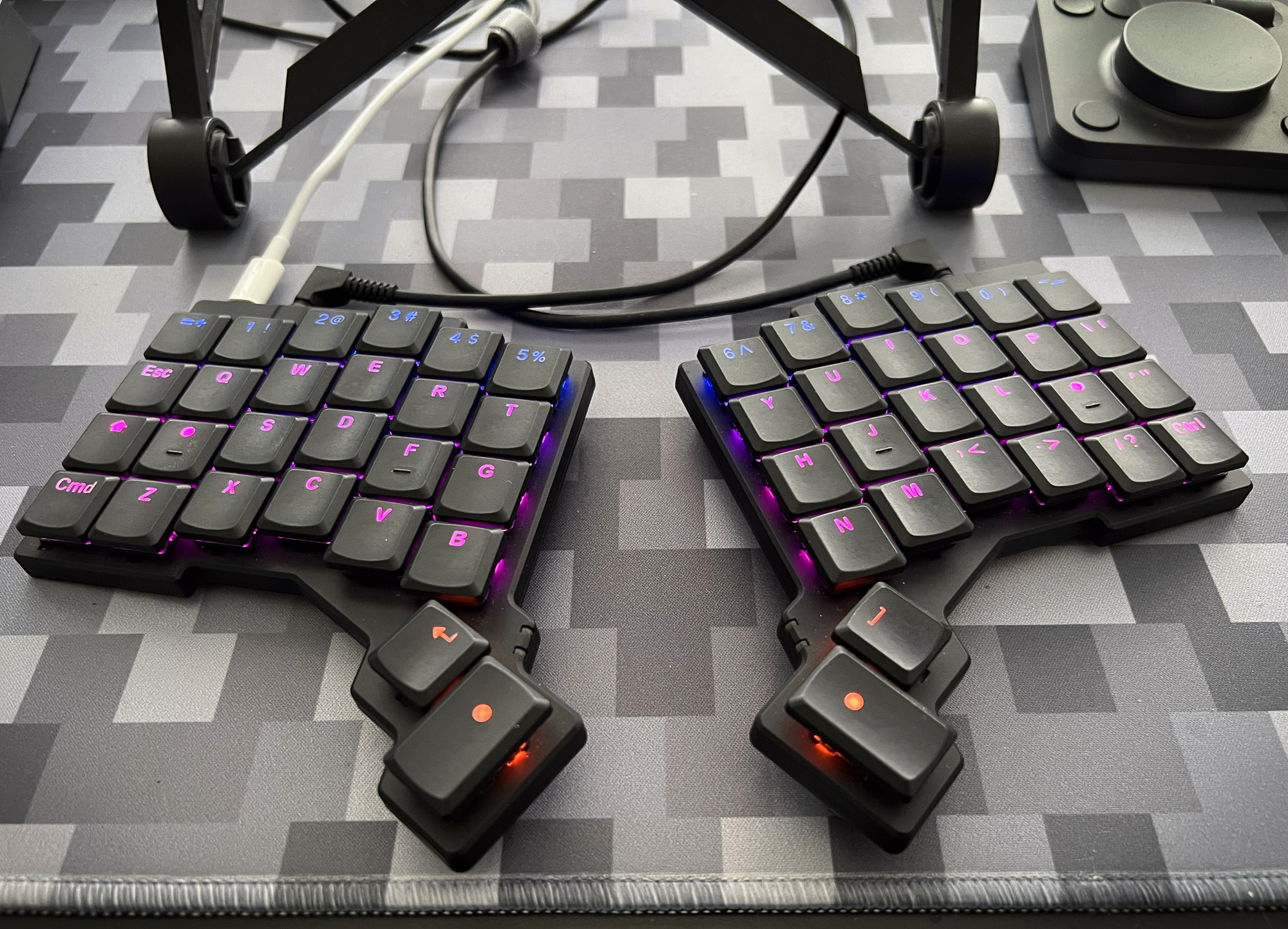
It’s been just over a year since I’ve migrated to Voyager as my main keyboard. As the name implies, it was a bit of a journey.
Let me document it a bit.
Repetitive strain injury is no joke. Along with bad vision this is one of the common injuries in our industry. I’ve been lucky enough to mostly evade it for the first 20 years of my professional career, but it is finally getting to me as well. It expresses like electric discharges in both of my wrists, often extending to thumbs. I’ve been successfully ingoring symptoms for a number of months, until it became clear that something has to be done about it.
At the time I was using my usual 60% Drop Alt mechanical keyboard. With mice improving the ergonomy is fairly straightforward - you simply get one of those vertical mice to get the wrists into a more natural position. Like many before me I went with MX Vertical from Logitech, and honestly it is an excellent mouse for daily usage.
With keyboards things are more complicated.
There are plenty of keyboards claiming to be the most ergonomic ones. What I wanted though was something akin to a vertical mouse - adjustable tenting, mechanical switches, and an adjustable split between two halves of the keyboard.
Adjustable split alone rules out lots of keyboards out there. Many of them would offer either no split, or a minimal split, while still being a keyboard in a single rigid frame. One of the most popular used to be Microsoft Sculpt - now being rebranded as Surface Ergonomic keyboards. A hint of ergonomicity, but not a huge lot if you ask me. A tiniest bit of tenting, a bit of a split, but mostly still your normal keyboard.
Not good enough.
Years ago while working at Bulb Energy - and having permanent desks in the office - the desk of our CTO featured ZSA Moonlander keyboard. It made an impression to everyone, had blank keycaps and looked a lot like an alient starship that just landed. I’ve also loved mechanical switches, and ideally would prefer a split fitted with Holy Pandas.
Turned out Moonlander was still a thing in 2025. But since then ZSA also introduced something called Voyager.
After a week of deliberations and watching comparison videos, I’ve pulled the plug and ordered it. ZSA are based in Taiwan, so shipping is across half of the planet, plus you’d need to pay import duties. Then again, what is cheap these days?
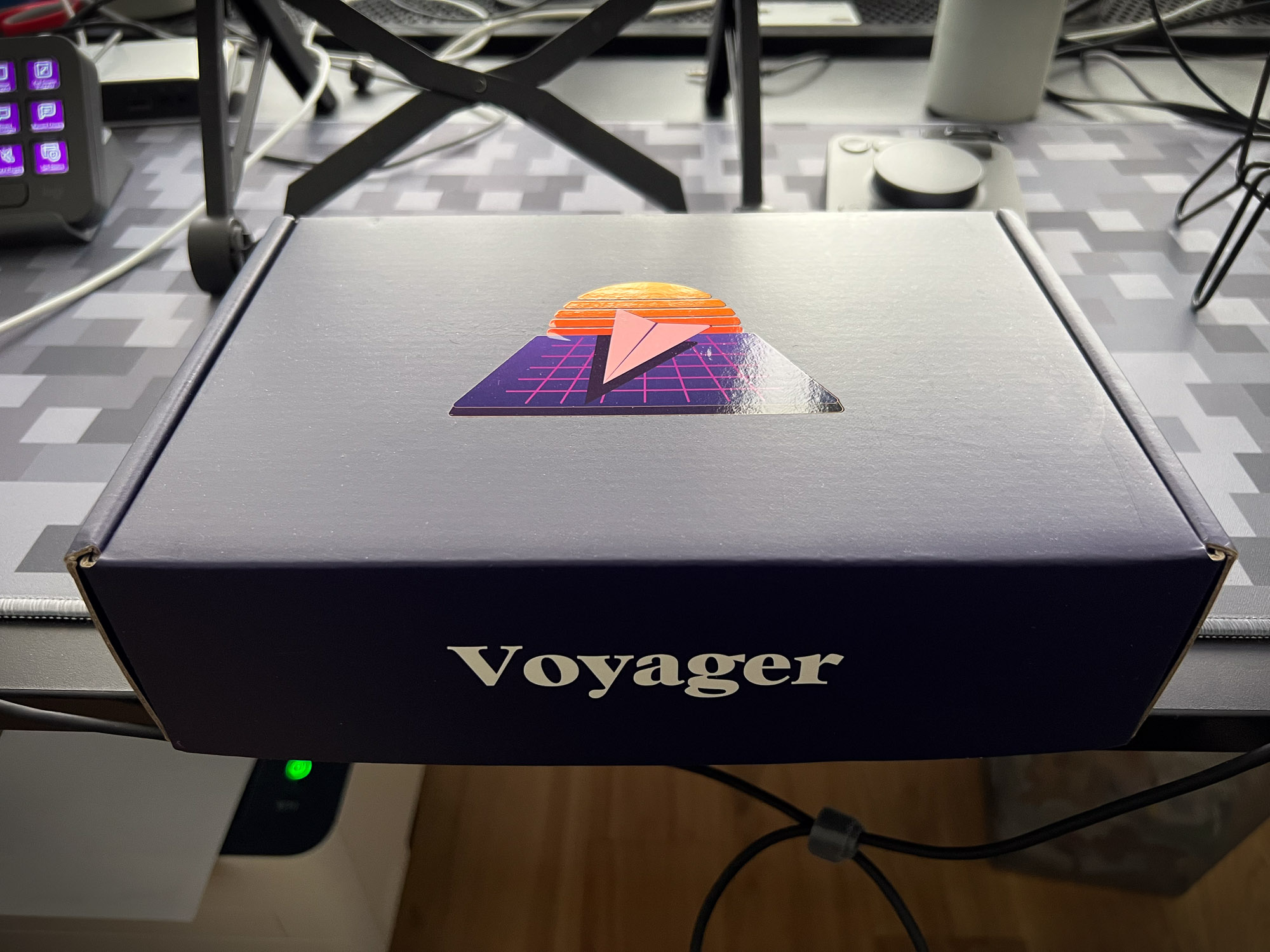
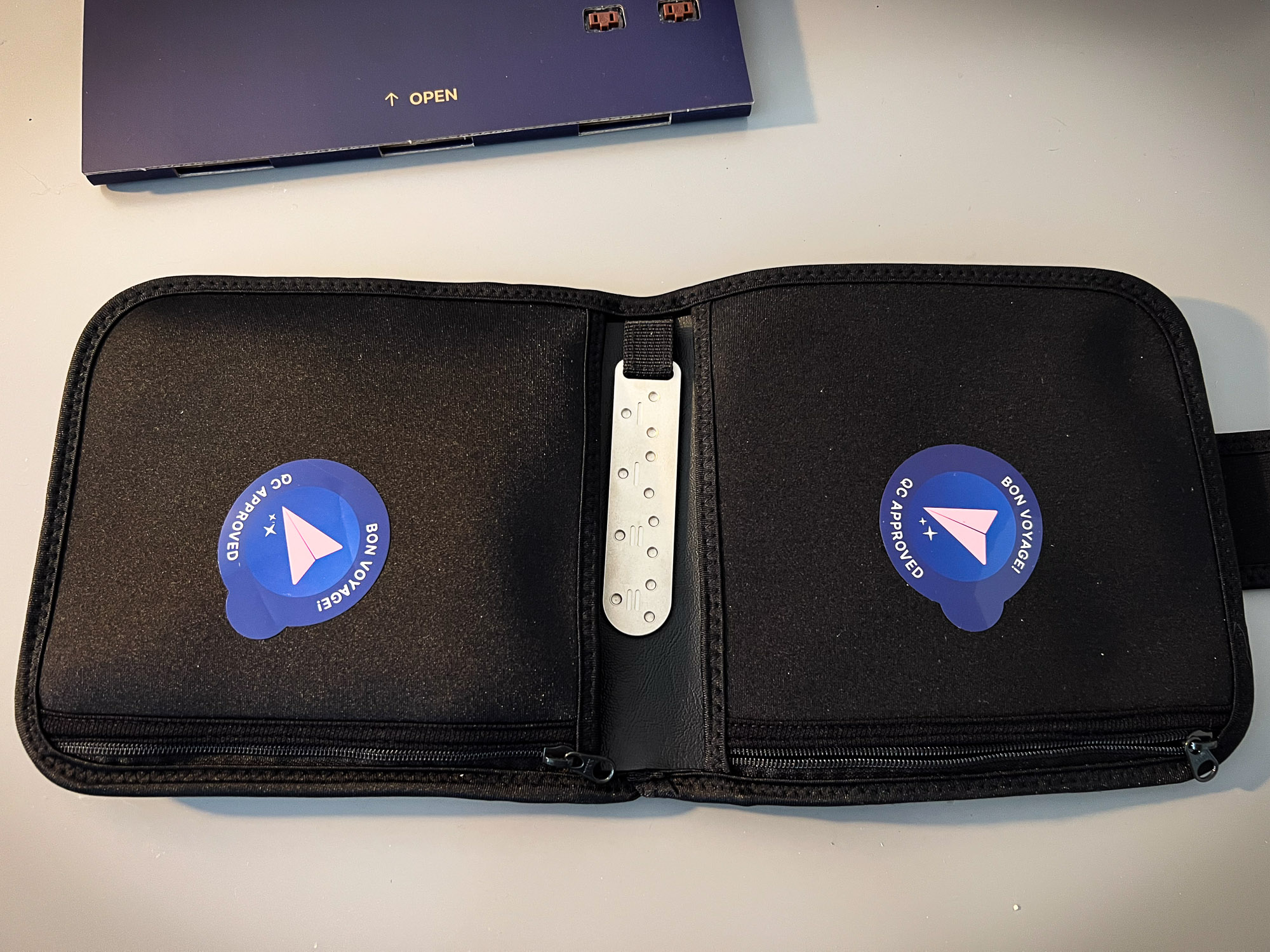
While Moonlander is more of a solid desktop feature, Voyager is meant to be mobile and highly adjustable to all sorts of life situations. It comes with a travel bag. You are meant to bring Voyager with you on trips.
It has small desk footprint. And while light in size, it still features metal frame, is very sturdy and stable when typing.
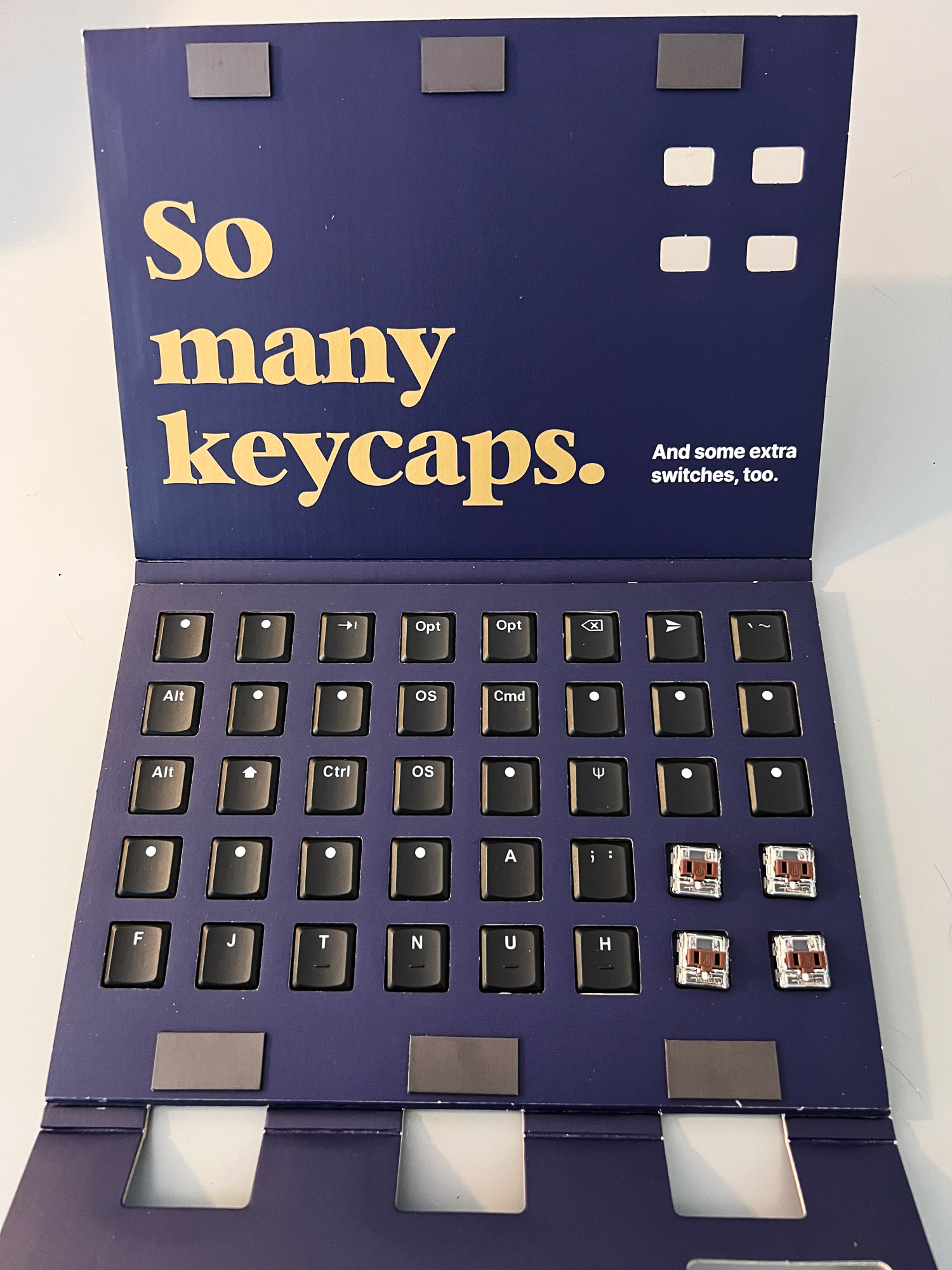
Switches are mechanical, but to achieve mobility they’ve had to go with low profile ones - namely Kailh Chocs. You do get a selection of tactile, clicky and linears, and I went with tactiles. Options also included blank keycaps (not ready for that yet) and black vs white frame (picked a black one).
Transition to ortho split kb
Most split keyboards are ortholinear, meaning every key is stacked exactly on top of each other. If you never used ortho layouts before, this is quite a change. Old muscle memory will not work, and I had to gradually re-build it.
Additionally, Voyager is meant to be used without looking. With a split all keys are already in their unusual spots, and with the increased split distance you’d have to constantly look left and right to keep up with the typing. So, it was finally time to go completely blind.
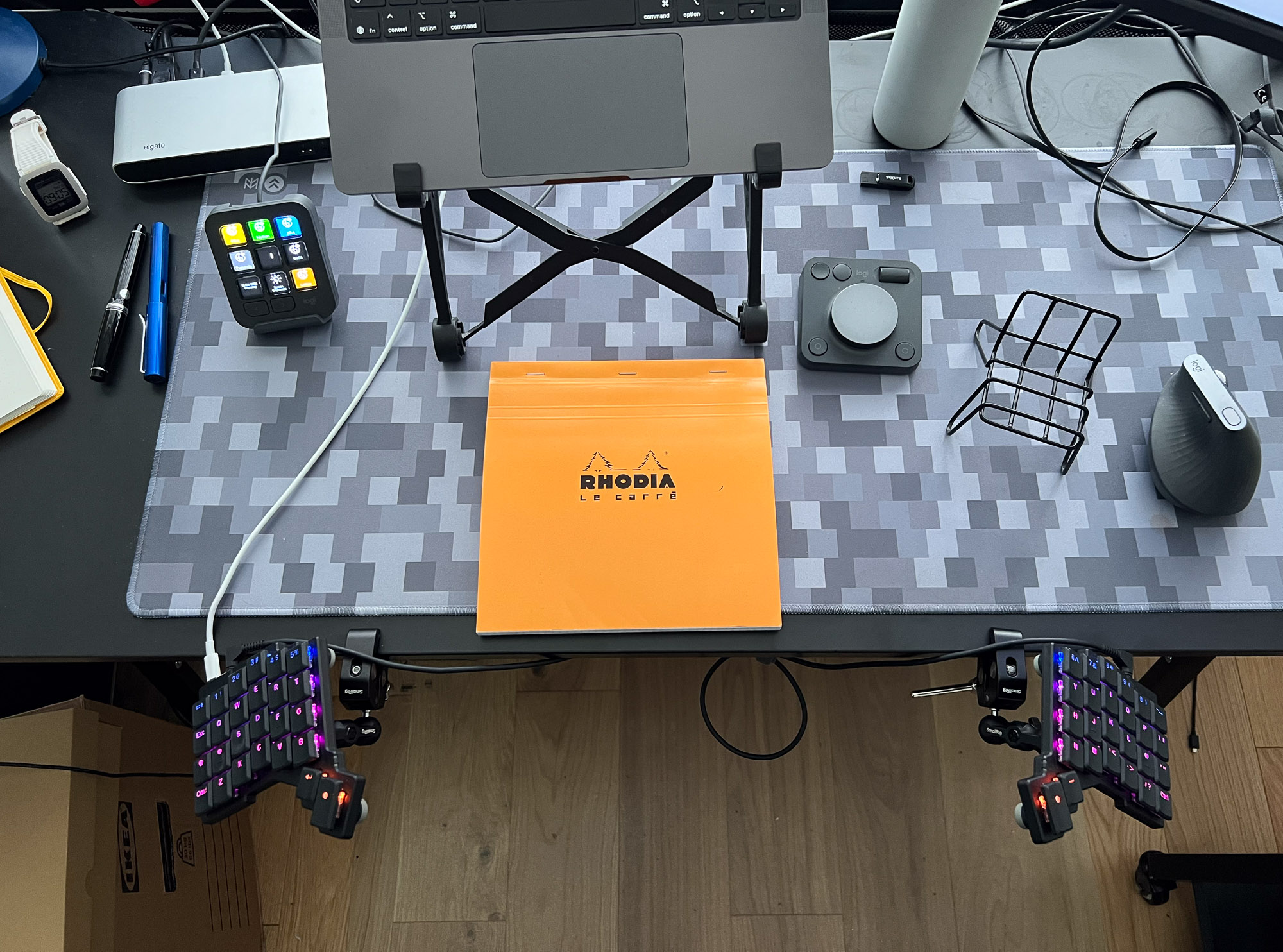
Luckily the ortho layout sort of helps with this. Well, first it breaks you, and then it offers some hints. Since all the keys are exactly on top of each other, it is easy to shift the whole hand up or down, and know exactly where you are.
Another useful hack was to replace A and ; keys with extra tactile keycaps. Voyager is supplied with an abundance of extra keycaps, and is meant to be customised to your liking. Mine now contains double homing keys on both splits, making it extra easy to locate.
One more hint for when you hit a mental block of where a particular key might be located. Since I use laptop, its keyboard is right in front of my eyes, and can be used as a map of where all the keys are. Special characters took especially long to learn.
But in all honesty, my typing speed took a heavy hit for the first couple of months, with gradual recovery later. And then of course once you build muscle memory for the ortho keyboard, you forget how to use the “normal” keyboard. And eventually you learn both. This took be closer to a year.
Customisations
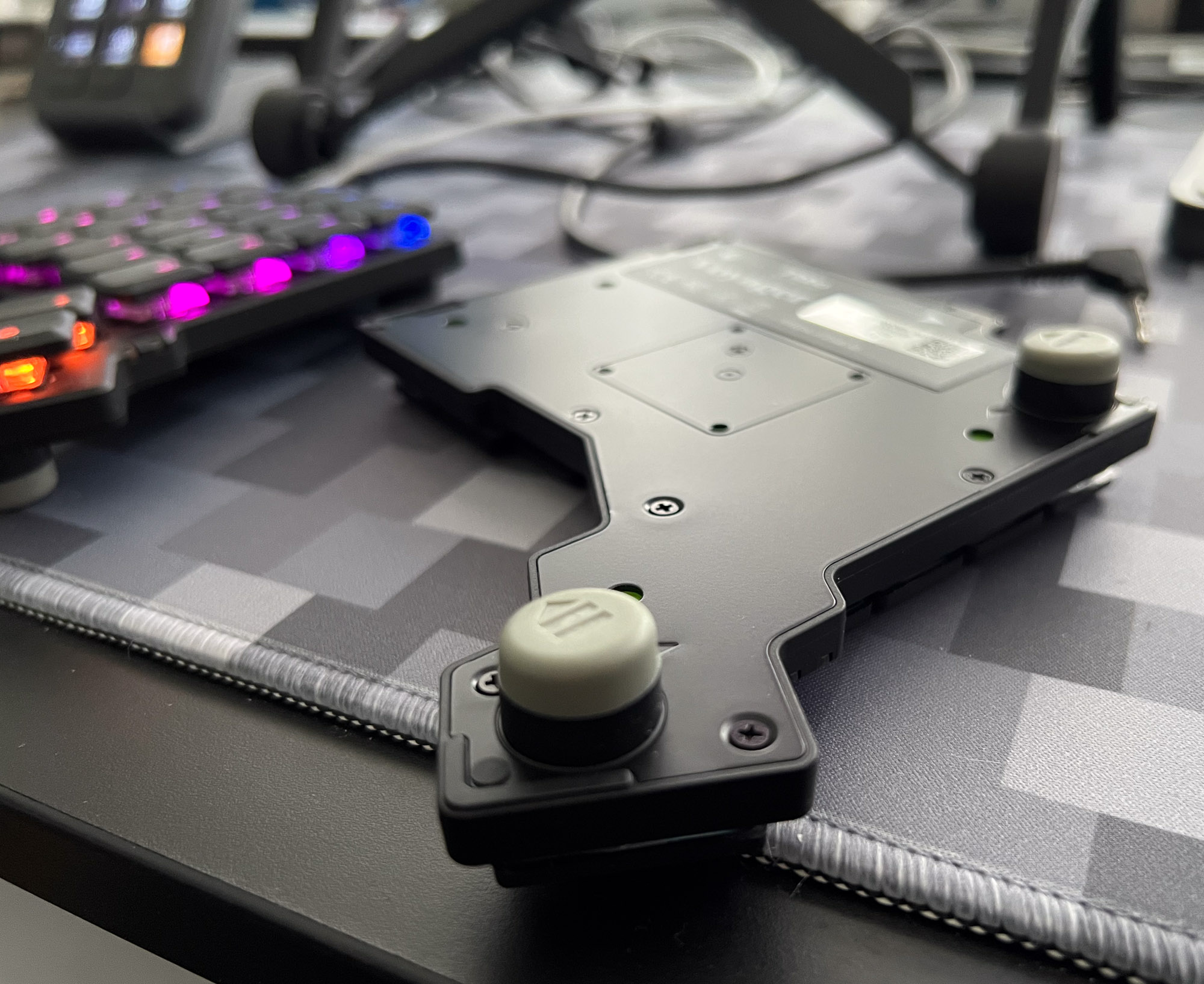
Out of the box it contains a set of magnets that give both sides of keyboard a bit of tenting. It is still mostly flat, with a bit of an upward slope towards the centre.
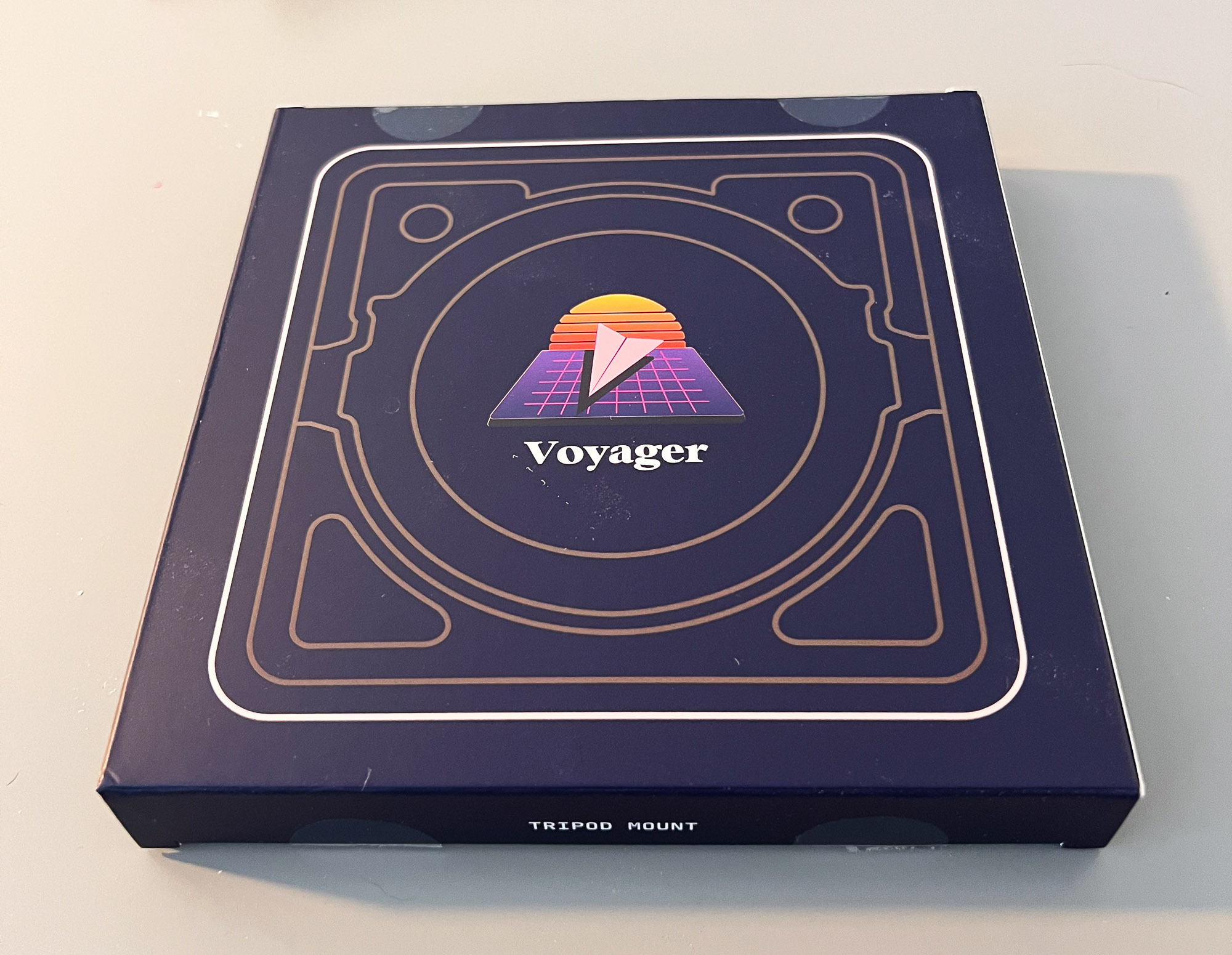
For a proper angling ZSA sells a tripod mounting kit. 2 more magnets with a dedicated slot in the middle of each side, and a standard tripod screw thread. Are you into photography? Do you have an extra pair of Manfrottos lying around? You can mount this keyboard onto those.
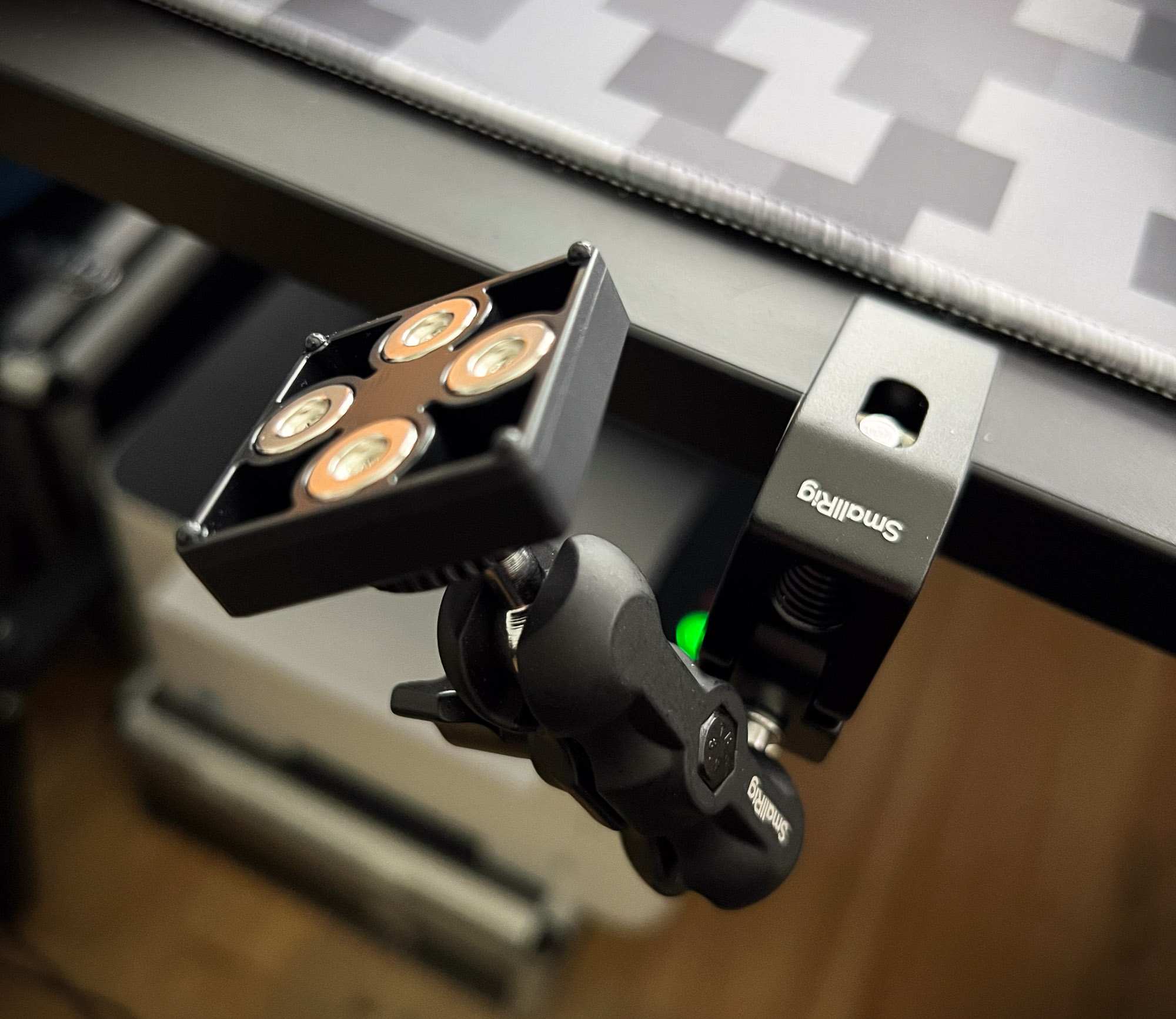
Tripods are generally quite versatile in terms of angling and reliably fixing things at those angles. Do you have a standing desk? Would you like to split this keyboard 3 feet apart and have it “hovering” in the air? I ended up getting a couple of Smallrig clamps and fixing it to the front of my work table. Now at a proper angle, and freeing up a good chunk of space on the table.
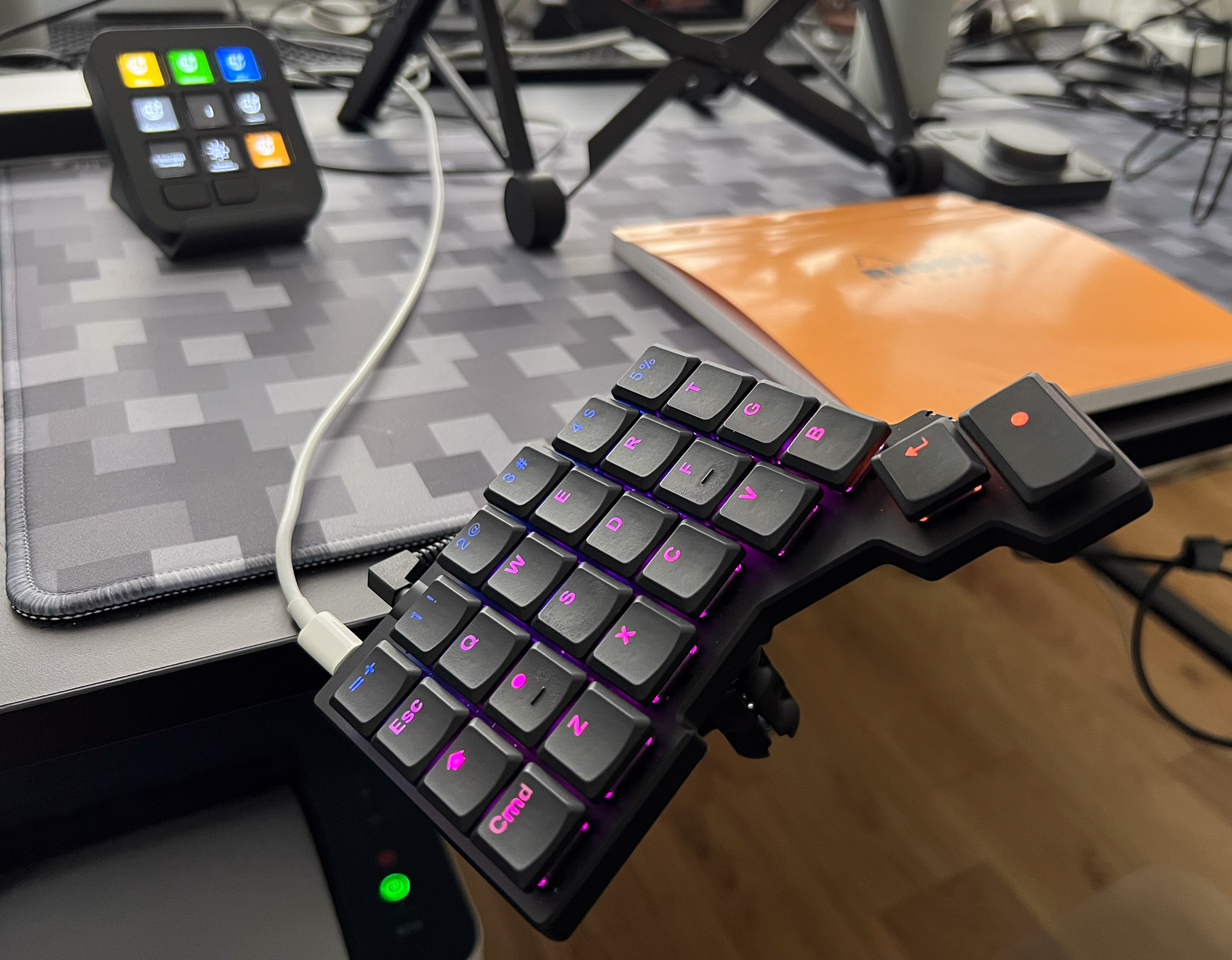
Also those tiny mini tripods from Manfrotto might be an interesting option. But they would also take precious space on the table. Choices, choices.
Custom layouts
This kb fully supports Oryx, meaning you get an online web app for building new layouts and flashing them onto Voyager. 3 layers by default.
It takes longer to figure out what you actually like and dislike about the layouts, especially when migrating from a conventional keyboard. On a bright side, Oryx gives you a lot of options, including different actions when tapping and holding keys, combos and even stenography if you are into that sort of thing.
The default factory layout is a great starting point, which took me a moment to learn, especially for the 2 extra layers.
Was it worth it?
Split keyboard definitely helped with my progressing RSI. Typing is not going away, and I need a way to continue doing it, ideally without harming myself. Combined with a vertical mouse, this is clearly a solution for now.
Increasing the split and having tripod mounts greatly increases comfort, while giving quite a bit of freedom for experimentation with different work table setups. No longer keyboard is in the middle of the table - in fact it could float above the surphace. The only ongoing caveat is the need of switching between mouse and keyboard. I’m exploring ways of going fully mouseless, but in some ways it can be tricky. Slack in particular, while adopting plenty of keyboard shortcuts, makes no sense in what they are.
I also miss full size mechanical switches, which makes me look at the Moonlander. Maybe Moonlander for home, and Voyager for travel?